How to send a lead
Your leads are already in your CRM. Each one has its website built and both texts written, signed with your name. Your job is to send those two texts from your own phone, then tell Structor you did. This page walks through it screen by screen.
Open StructorSign in
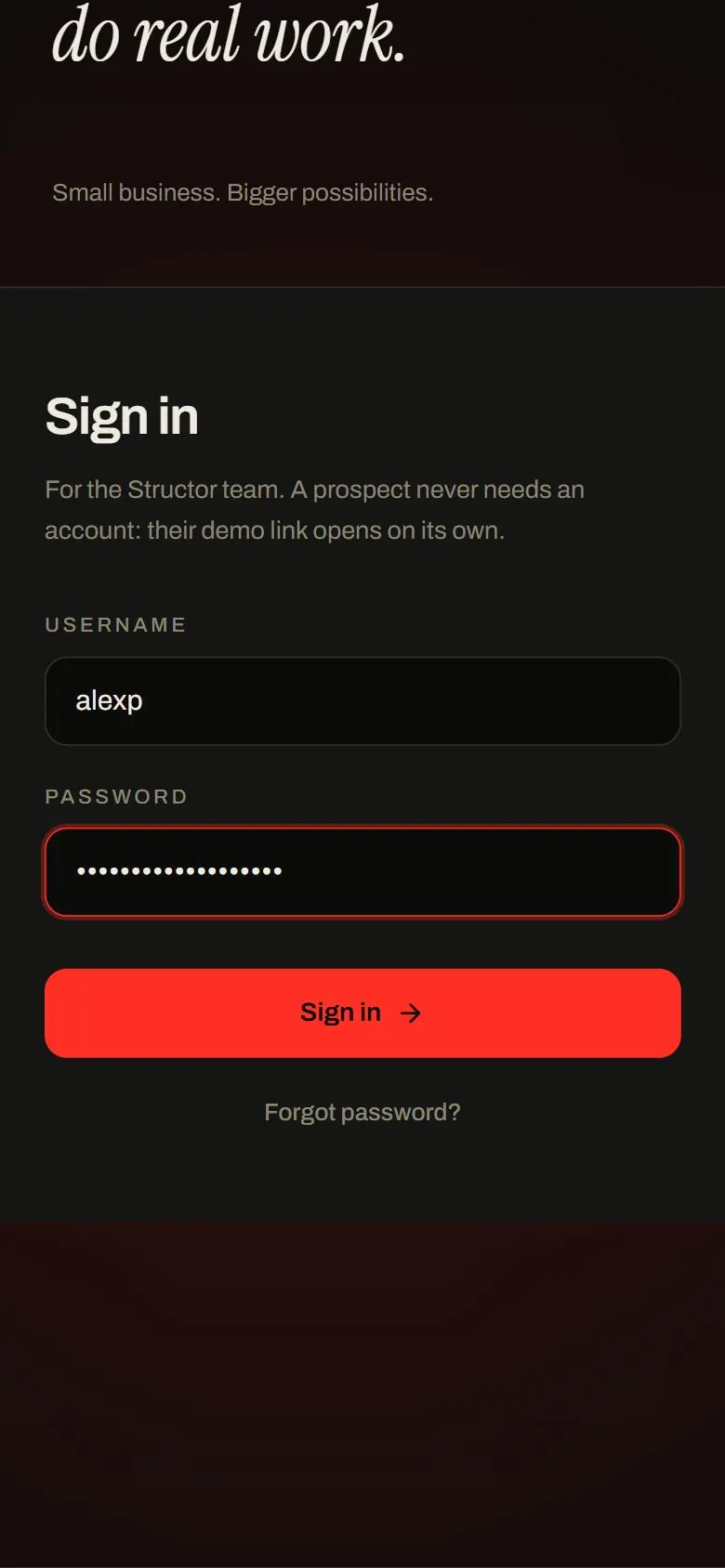
On your phone, open app.structordigitalstudios.com. Type the username and password you were given and tap Sign in.
Tip: in Safari tap the Share button, then Add to Home Screen, so Structor opens like an app next time.
Forgot your password? Tap Forgot password? under the button and we email you a link.
The first time: add your email
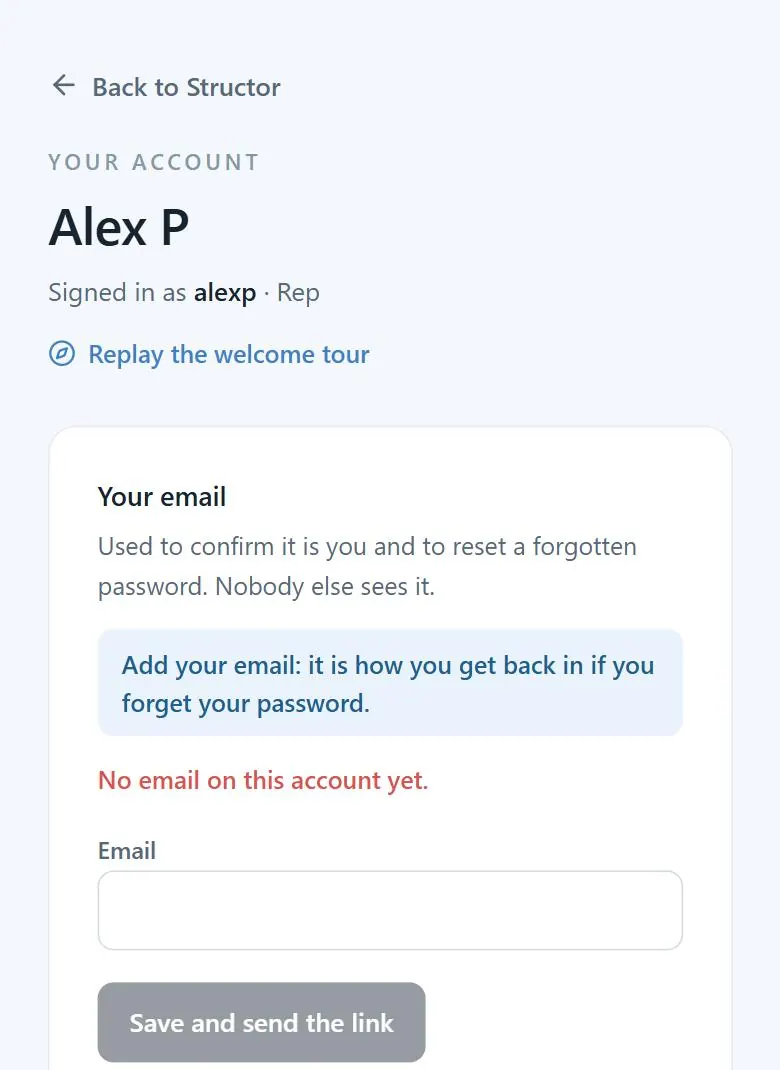
The first time you sign in, Structor asks for your email. Type it and tap Save and send the link. Then open the email from Structor and tap the link in it.
That email is how you get back in if you ever forget your password. You only do this once.
Your CRM
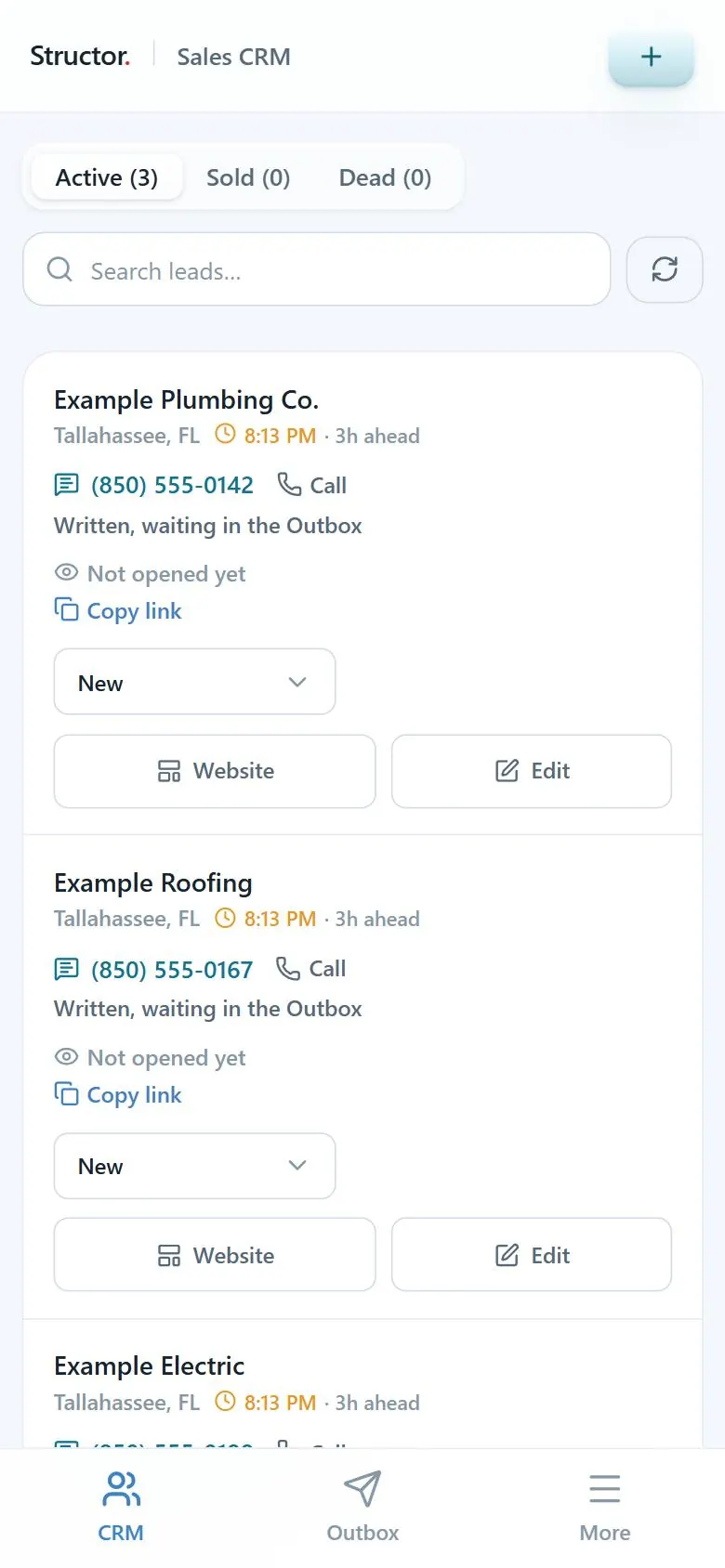
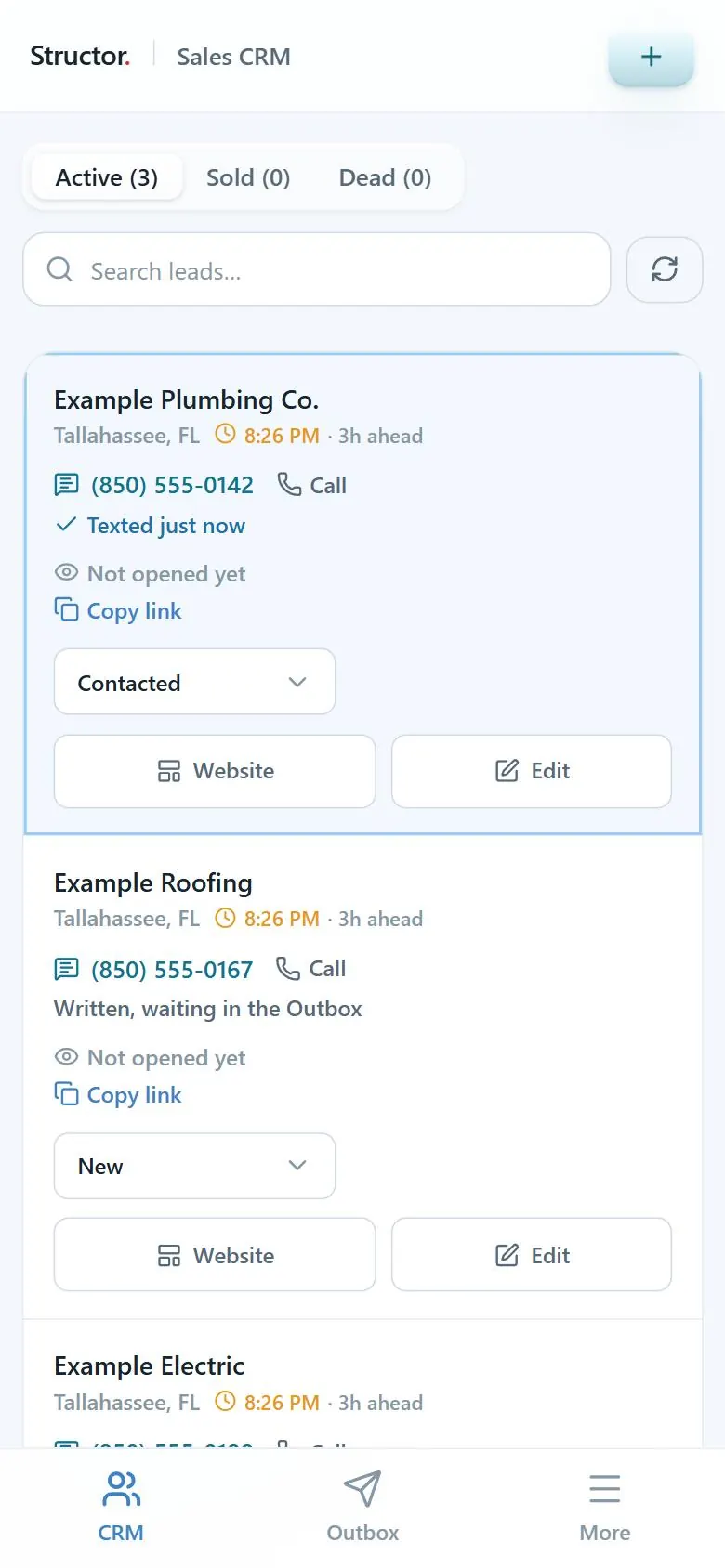
Tap CRM at the bottom of the screen. Every card is one business. It shows:
- their name and town
- the time where they are, so you know if it's a good time to text
- their number, with Call next to it
- whether they've been texted yet
- whether they've opened the website we built them
Open a lead
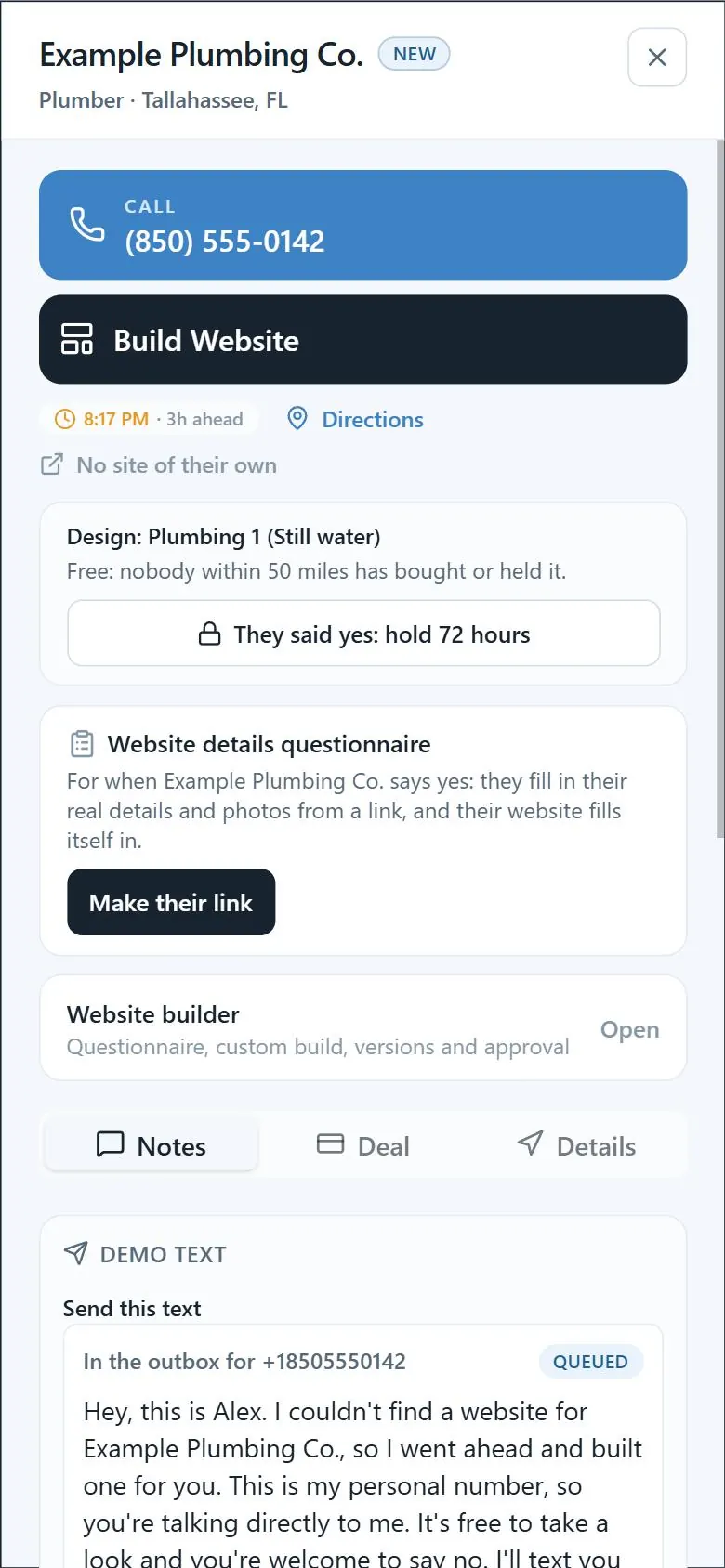
Tap Edit on a card. The lead opens with their number, the website design they got, and everything else about them.
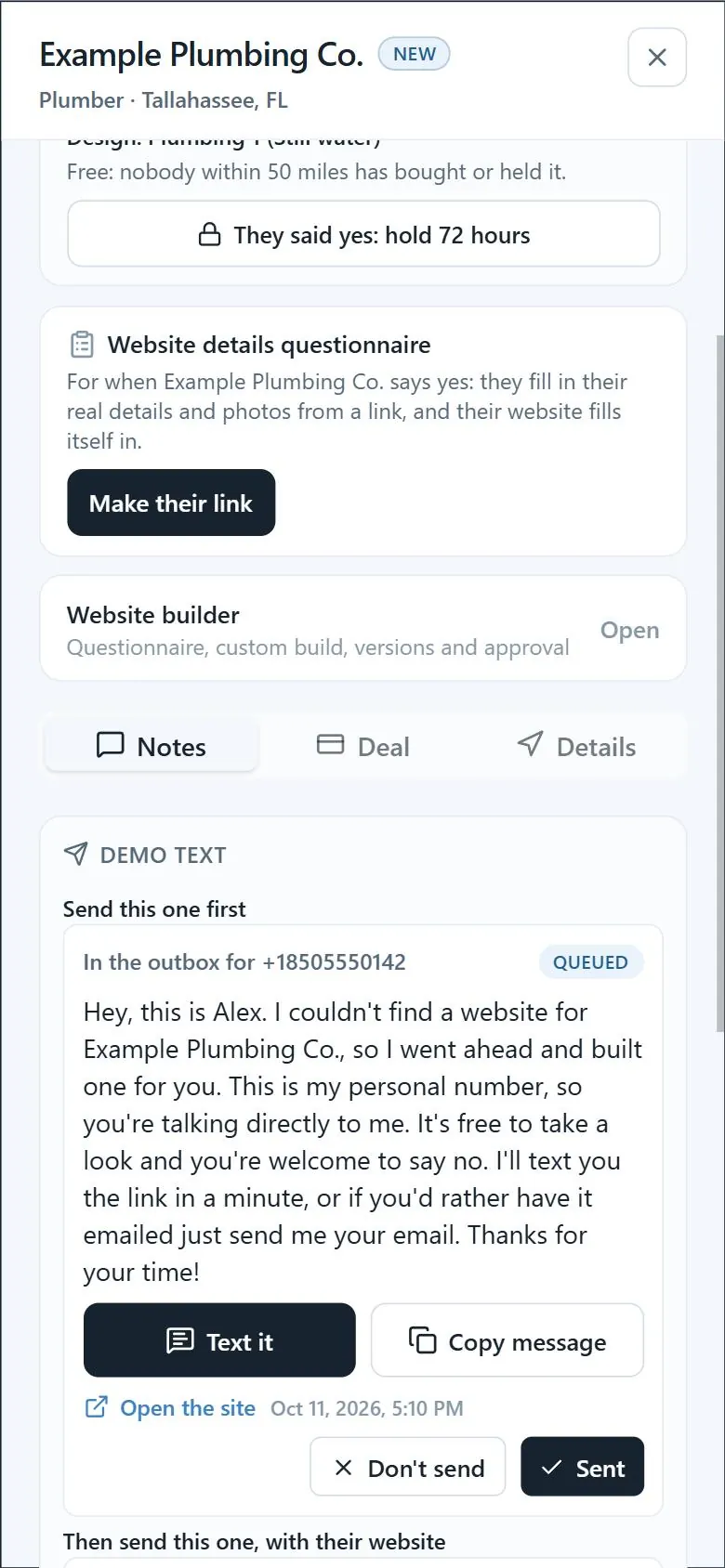
Scroll down to Demo text. Your two texts are waiting there.
Send the first text
Under Send this one first, tap Text it. Your Messages app opens with their number and the message already typed in. Tap send.
Come back to Structor and tap Sent under that text.
Then send their website
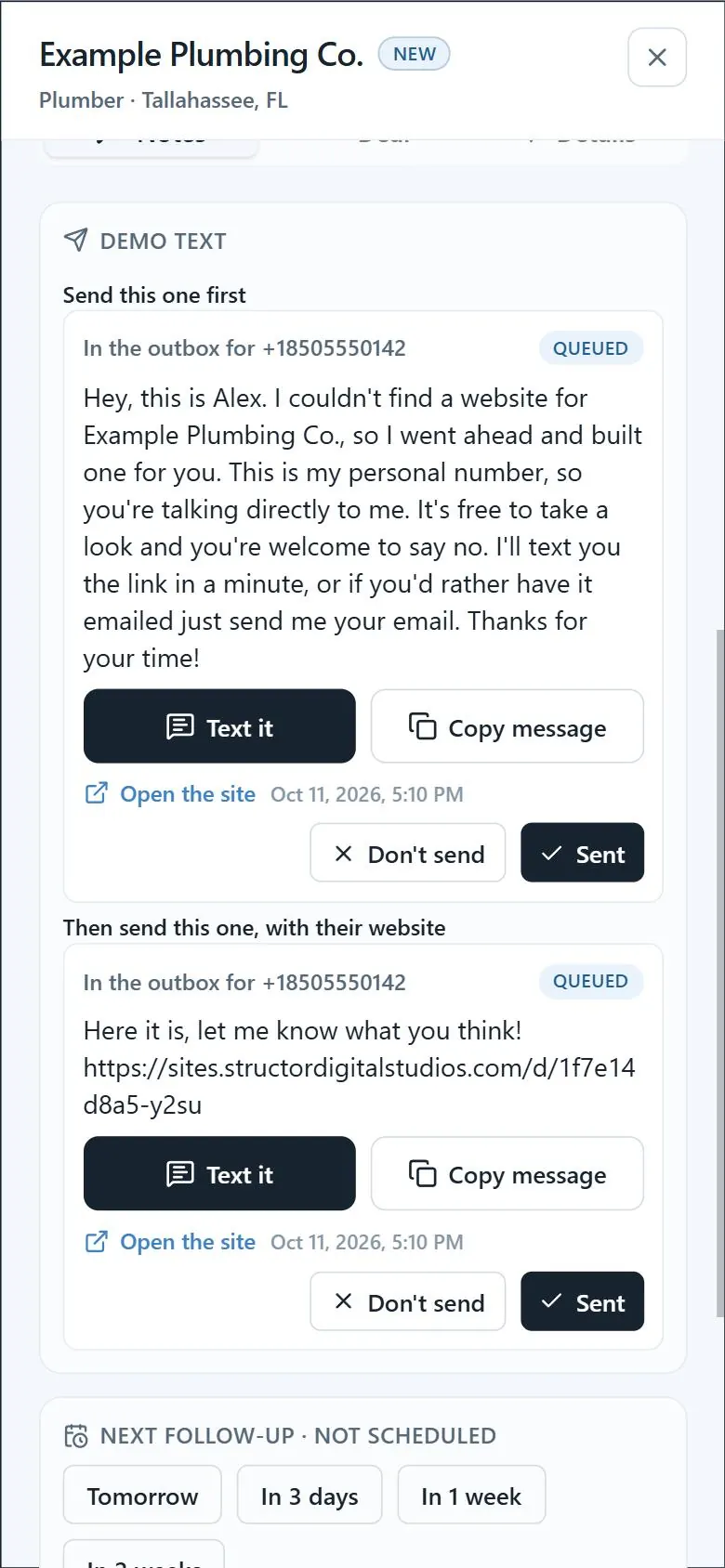
The first text tells them the link is coming in a minute. So wait about a minute, then under Then send this one, with their website tap Text it, send it, come back and tap Sent.
That second text is the link to the website we built for them.
Done: the card turns light blue
Back on your CRM, that business now has a light blue outline and says Texted. Its stage moves to Contacted on its own.
When they open their website, the card says Opened. That's your moment to call them.
Need to send the website again? Tap Copy link on the card and paste it into a text or an email.
Or work straight down the Outbox
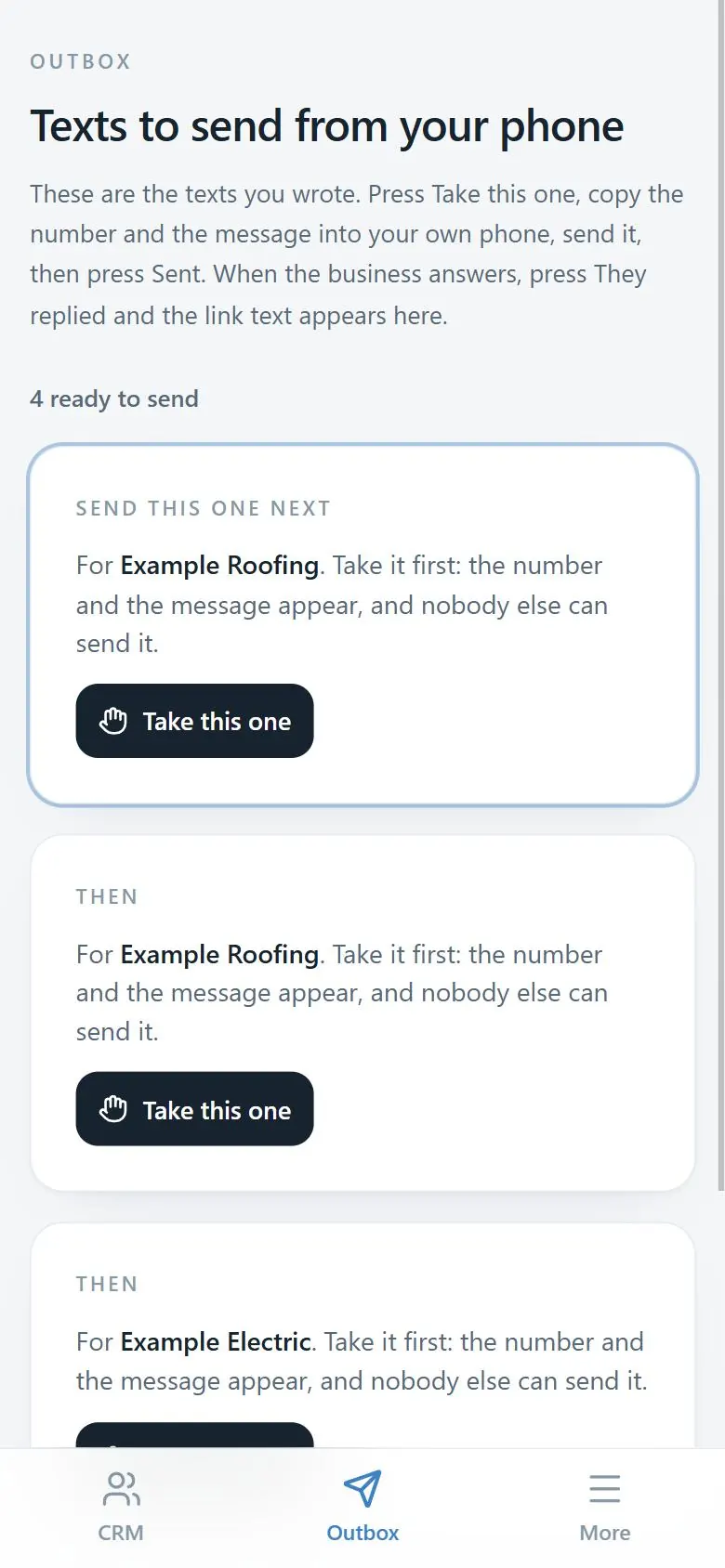
The Outbox button at the bottom lists every text you have waiting, in the order to send them. Tap Take this one, send it from your phone, then tap Sent. It's the same texts, just one after another.
The rules
- Only text between 9 in the morning and 7 at night their time. The clock on each card shows their time.
- Always send the two texts in order, first text then website, and always tap Sent after each one.
- If they say no, or reply STOP, never text them again. Tap Don't send on anything left for them.
- If they reply interested, or the card says Opened, call them.
- Never text a light blue card twice.